


🗺️ Data Schema Mapping Overview
Short Description
The Data Schema Mapping system provides a flexible and extensible framework for defining how to map and transform data from various sources to target UObjects based on user-defined schema assets. It is designed to facilitate data migration, content creation, and integration workflows within the Unreal Editor.
Long Description
The core of the system is the UGorgeousDataSchemaMapping_DA data asset, which allows users to define source and target structures, field mappings, and transformation rules. The FGorgeousDataSchemaMapper class provides static functions to apply these schema mappings to source data, handling the complexities of property resolution, type conversion, and error reporting.
This system is particularly useful for scenarios such as migrating legacy data to new formats, creating assets from various data sources, or implementing custom content pipelines that require dynamic data mapping and transformation.
Limitations
As for the current implementation, the Data Schema Mapping system is only supported by the Editor to create migration tools and data importers. Runtime support is planned for a future release, which will allow for dynamic data mapping during gameplay, like to bind external data structures (JSON, CSV, Database) to Gorgeous Object Variables or map HTTP request results to Object Variables for use in gameplay logic.
Stay tuned for updates on this feature!
Backup Your Data
When performing data migrations using the schema mapping system, it is highly recommended to backup your project and data before applying any mappings. While the system is designed to be robust and provides detailed error reporting, there is always a risk of unintended consequences when modifying large amounts of data, especially if there are misconfigurations in the schema asset. Always ensure you have a backup to restore from in case anything goes wrong during the migration process.
🏗️ How it Works
- Create a
UGorgeousDataSchemaMapping_DAasset and define the source and target structures, field mappings, and transformation rules. - Use the editor content browser menu action (if enabled) or the Editor Toolkit to perform "Bulk Migrate" operations based on your defined schema mapping, applying the mapping to all relevant source items and creating new target assets as defined by your schema.
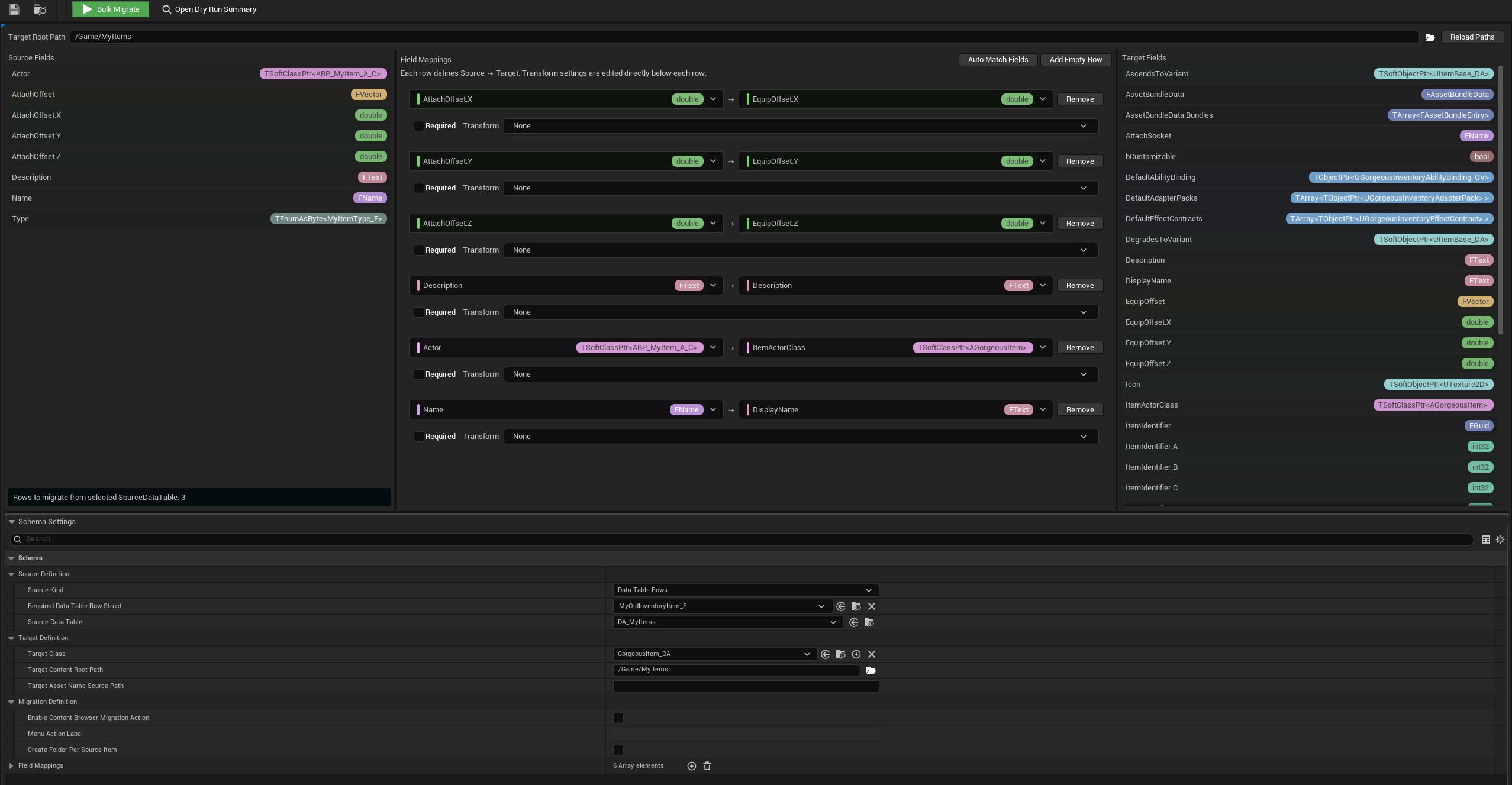
Define a Schema Mapping Asset
Create a new UGorgeousDataSchemaMapping_DA asset in the editor and define the source and target structures, field mappings, and any necessary transformation rules.
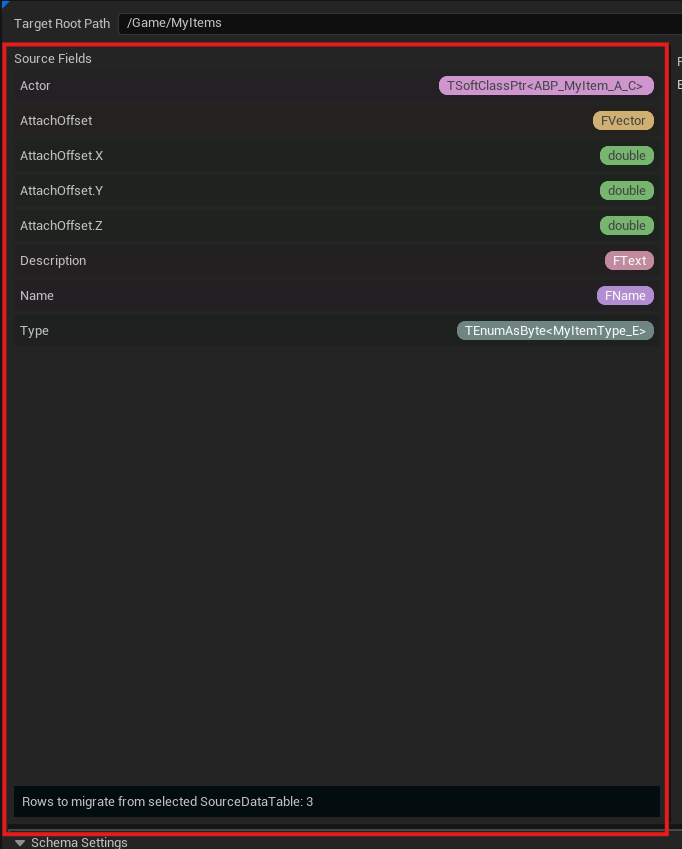
The source definition allows you to specify the kind of data you are mapping from (e.g., UObjects, Data Assets, DataTable rows), while the target definition specifies the class of the target assets and how to derive their names.
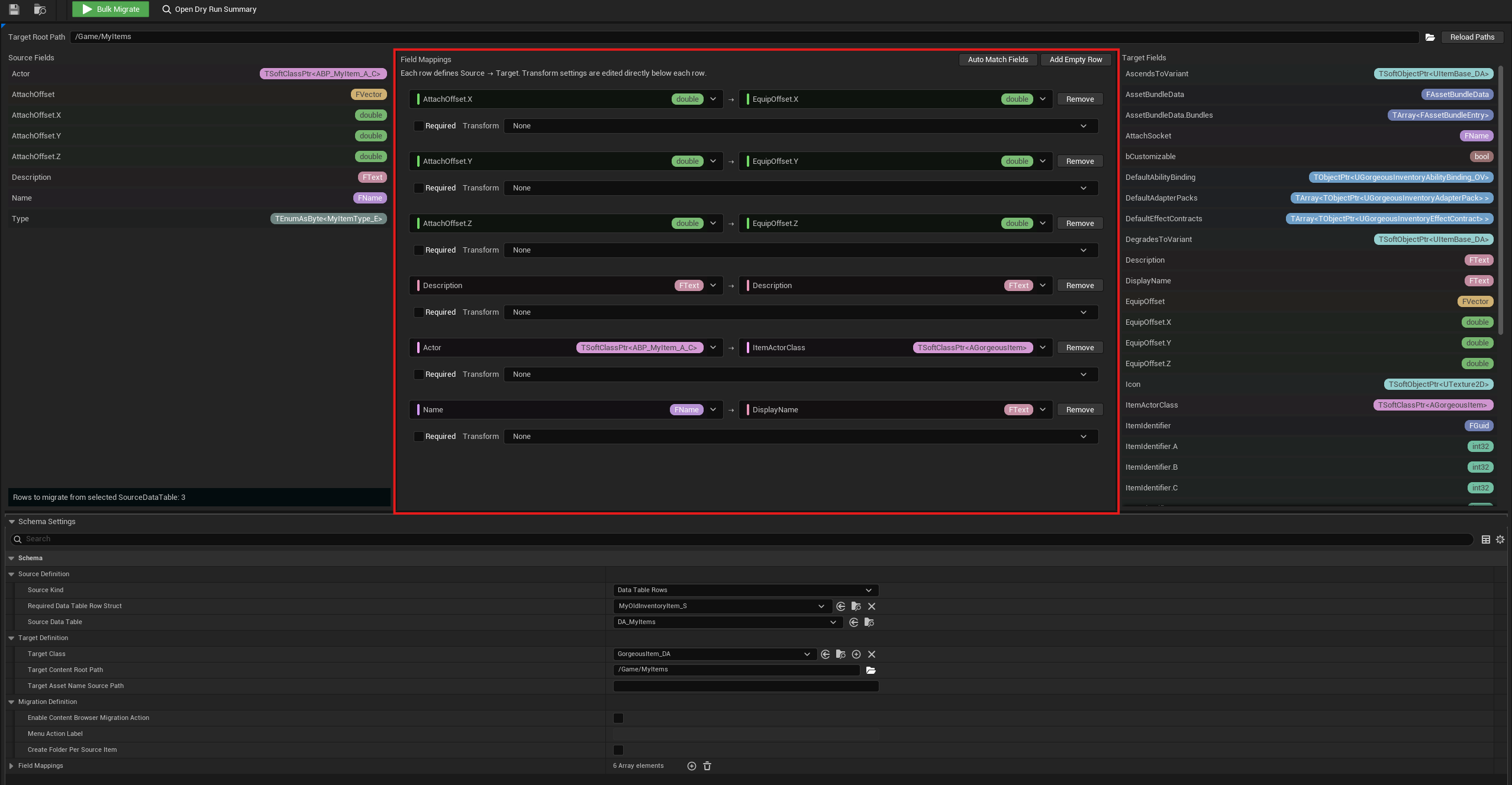
Field mappings define how individual fields from the source should be mapped to the target, including any transformations that should be applied to the data during migration.
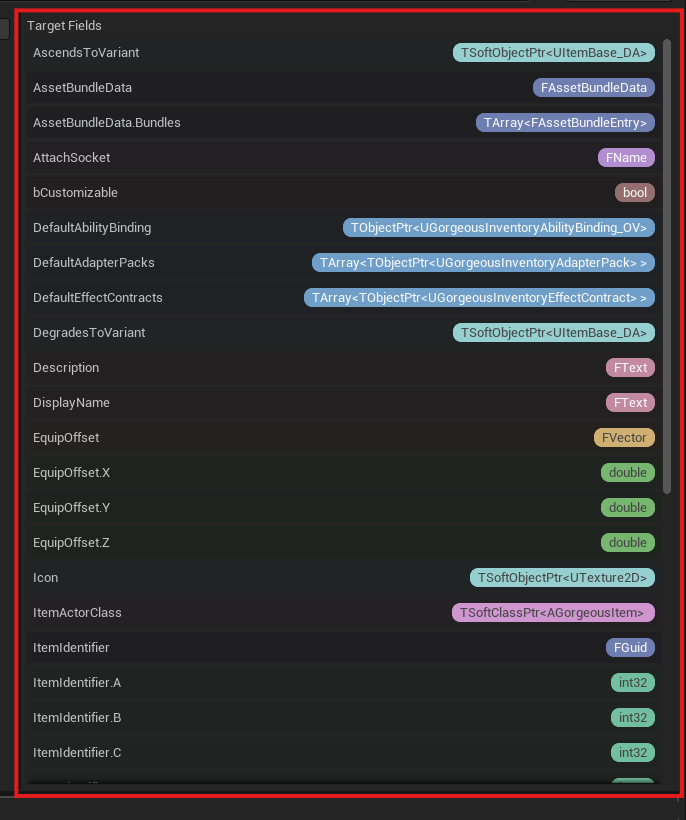
The target definition specifies the class of the target assets to be created and the content root path where they should be saved. You can also specify an optional source field path to derive asset names from specific source field values.
Diagnostics
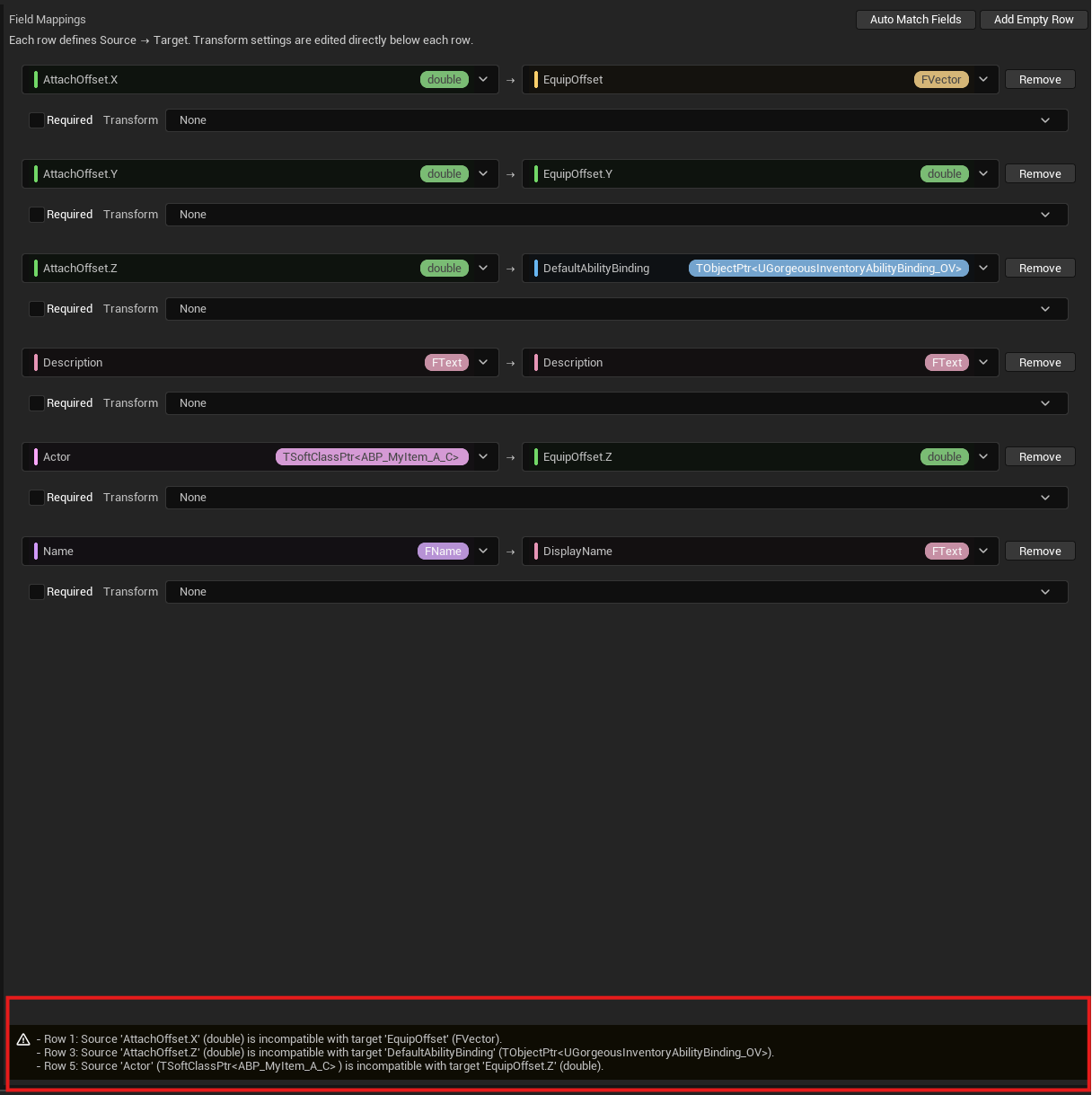
The editor provides real-time diagnostics to help you identify and resolve issues with your schema mapping configuration. If there are any problems with your field mappings, such as missing source fields, type mismatches, or transformation errors, they will be highlighted in the editor with detailed error messages to guide you in fixing them before performing a migration.
Test using Dry Runs
Before performing an actual migration, you can use the "Dry Run" feature to simulate the migration process without creating any assets. This allows you to verify that your schema mapping is set up correctly and that the expected mappings and transformations will occur as intended. The dry run will provide a detailed report of the mapping process, including any errors or warnings that may arise from misconfigurations in your schema asset, giving you the opportunity to make adjustments before executing the actual migration.
A Dry Run can look like this in the output:
Dry-Run Report | UTC 2026-05-12 21:34:53
Schema: /Game/DA_MyMigration.DA_MyMigration
Previewed Items: 3
Failed Items: 0
Evaluated Fields: 18
Changed Fields: 12
Unchanged Fields: 6

Legend:
  - Diff Lines include only rows where target values changed.
  - Before is the target class default value on a transient preview object before the mapping is applied.
  - After is the resulting value after source extraction, transform, and target import.
  - Before='' or Before='None' is often a normal default and does not imply a missing source field.
  - Real path/type problems appear as warnings/errors in Item Summary and can cause failed items.

Item Summary:
  - DA_MyItems_SWORD | Success=true | Evaluated=6 | Changed=4 | Warnings=0 | Errors=0
  - DA_MyItems_GOLD | Success=true | Evaluated=6 | Changed=3 | Warnings=0 | Errors=0
  - DA_MyItems_HEALING_POTION | Success=true | Evaluated=6 | Changed=5 | Warnings=0 | Errors=0

Diff Lines:
  - Source='DA_MyItems_SWORD' | AttachOffset.X -> EquipOffset.X | Before='0.000000' | After='100.000000'
  - Source='DA_MyItems_SWORD' | Description -> Description | Before='' | After='NSLOCTEXT("[417A9E6D9F5408F0A6BE443E278478DD]", "6A64F88241BC1A18CB9B8089435E0CFA", "A Sword that lets you attack someone.")'
  - Source='DA_MyItems_SWORD' | Actor -> ItemActorClass | Before='None' | After='/Game/Sowrd.Sowrd_C'
  - Source='DA_MyItems_SWORD' | Name -> DisplayName | Before='' | After='Cool Sword'
  - Source='DA_MyItems_GOLD' | Description -> Description | Before='' | After='NSLOCTEXT("[417A9E6D9F5408F0A6BE443E278478DD]", "1515472944ED767A13A035A58BC4E766", "A Currency that lets you buy stuff in the item shop.")'
  - Source='DA_MyItems_GOLD' | Actor -> ItemActorClass | Before='None' | After='/Game/Gold.Gold_C'
  - Source='DA_MyItems_GOLD' | Name -> DisplayName | Before='' | After='Gold'
  - Source='DA_MyItems_HEALING_POTION' | AttachOffset.X -> EquipOffset.X | Before='0.000000' | After='50.000000'
  - Source='DA_MyItems_HEALING_POTION' | AttachOffset.Y -> EquipOffset.Y | Before='0.000000' | After='10.000000'
  - Source='DA_MyItems_HEALING_POTION' | Description -> Description | Before='' | After='NSLOCTEXT("[417A9E6D9F5408F0A6BE443E278478DD]", "0F2E1B6C43444E8788C23D85EB8F7141", "A Potion that heals 50% of your max health.")'
  - Source='DA_MyItems_HEALING_POTION' | Actor -> ItemActorClass | Before='None' | After='/Game/HealingPotion.HealingPotion_C'
  - Source='DA_MyItems_HEALING_POTION' | Name -> DisplayName | Before='' | After='Healing Potion'
Apply the Schema Mapping
Use the editor content browser menu action (if enabled) or the Editor Toolkit to perform "Bulk Migrate" operations based on your defined schema mapping. This will apply the mapping to all relevant source items, creating new target assets as defined by your schema and populating them with data from the source according to your field mappings and transformations.
Troubleshooting
If any issues arise during migration, such as missing source fields, type mismatches, or transformation errors, they will be reported in the log output with detailed information to help you identify and resolve the problems. You can refer to the log output to understand what went wrong and make necessary adjustments to your schema mapping asset before trying again.
The Result
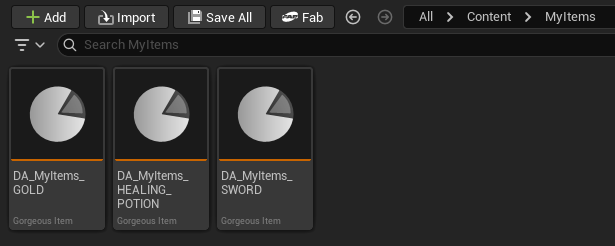
After applying the schema mapping, you will have new target assets created in your content browser, populated with data from the source items according to the mappings and transformations defined in your schema asset. You can then use these new assets in your project as needed, and if any issues arise during migration, you can refer to the detailed logs for troubleshooting.

🎯 Why it Matters
The Data Schema Mapping system provides a powerful and flexible way to manage data migration and content creation workflows within Unreal Engine. By allowing developers to define custom mappings and transformations, it enables the automation of complex data handling tasks, reduces manual effort, and helps ensure consistency and accuracy when migrating or creating assets based on external data sources.
This can be especially valuable in large projects with significant amounts of data or when integrating with external systems, as it provides a structured and reusable approach to data management.
🛠️ What Developers Can Do With It
Want to migrate legacy data to a new format? Define a schema mapping asset that describes how to map your old data structure to the new one, and use the provided tools to perform bulk migration.
Want to migrate from your current System to Gorgeous Systems? Create a schema mapping asset that defines how to map your existing data to the required format for Gorgeous Systems, and use it to automate the migration process.